

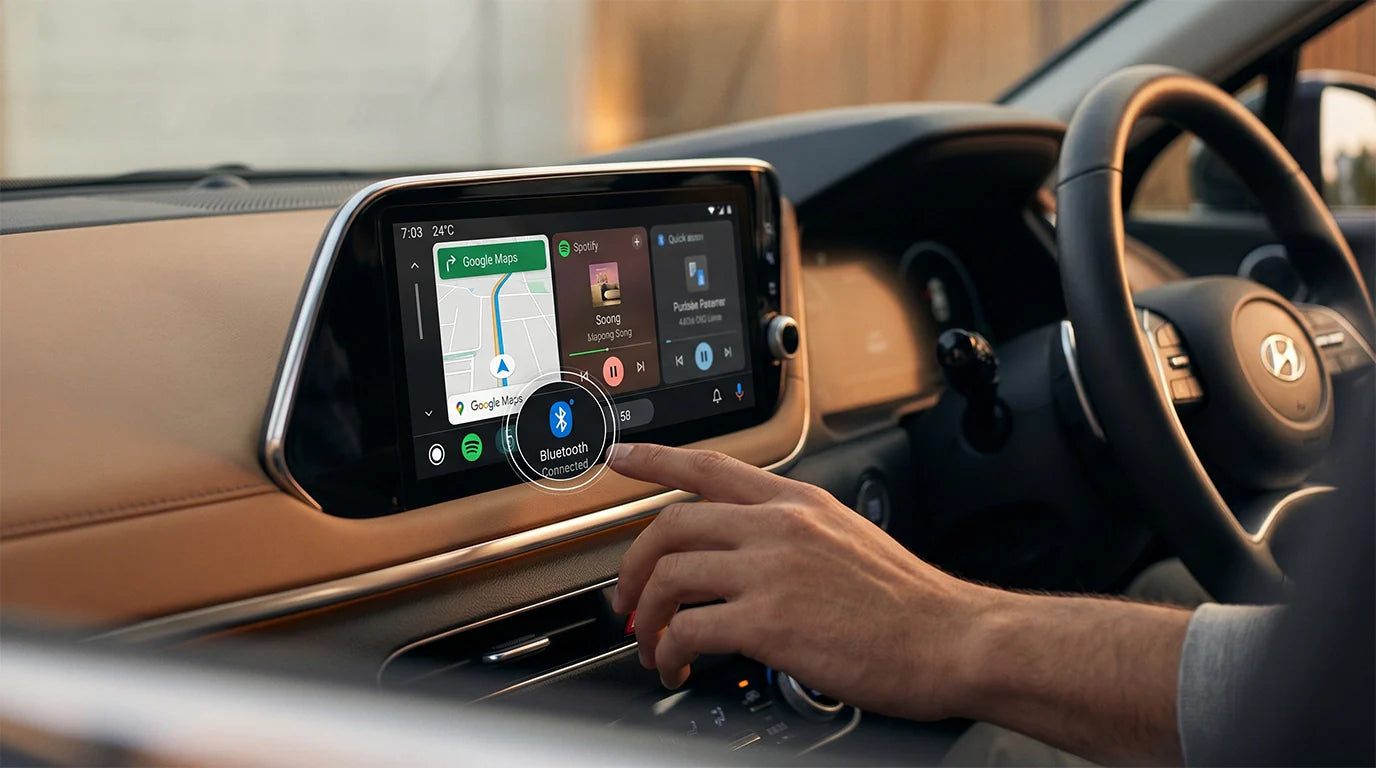
If your Hyundai will not connect, first identify what is actually failing: ordinary Bluetooth handles calls and audio, Android Auto projects supported phone apps to the vehicle screen, and the MyHyundai app can involve separate account or connected-vehicle features. Fixing the wrong connection type wastes time. Start with the symptom table below, then follow only the matching section.
Safety: Park in a safe place before pairing a phone, changing permissions, deleting saved devices, testing a cable, or updating the infotainment system. Menu names vary by Hyundai model, model year, market, head unit, and software, so the owner's manual for the exact vehicle takes priority.
Which Hyundai Connection Is Failing?
| What you are trying to use | Connection path | First check |
|---|---|---|
| Phone calls, contacts, or basic audio | Hyundai Bluetooth | Confirm the phone is paired to the vehicle and selected for the needed function. |
| Google Maps, Assistant, messages, or supported apps on the vehicle screen | Wired or native wireless Android Auto | Confirm the exact Hyundai supports Android Auto and identify whether its connection is wired or wireless. |
| A feature inside the MyHyundai app | MyHyundai account, Bluelink, Digital Key, or another vehicle-specific feature | Open the feature's own setup instructions; do not assume the Android Auto pairing flow controls it. |
| Wired Android Auto works, but you want it to connect without a cable | Wired-to-wireless adapter eligibility | Verify factory wired Android Auto works reliably before considering an adapter. |

How to Fix a Hyundai Bluetooth Connection Problem
For calls or Bluetooth audio, begin with Hyundai's standard pairing path. Hyundai USA's general Bluetooth pairing guide uses Setup > Bluetooth > Bluetooth Connection > Add New. Your vehicle may label these menus differently.
- Park the Hyundai and turn on Bluetooth on the phone.
- Open the vehicle's Bluetooth or Device Connections menu and choose Add New.
- Select the Hyundai device name on the phone.
- Compare the code shown on the phone and vehicle. Confirm only when the codes match.
- Allow contacts or message access only if you want those functions.
- If several phones are saved, set the intended phone as the priority or disconnect another active phone.
If the phone was previously paired but will not reconnect, delete the saved Hyundai connection from the phone and delete the phone from the vehicle, restart both, then pair again. Deleting a vehicle-side profile may also remove downloaded contacts and call history, so review the on-screen warning first.
If Bluetooth works for calls but Android Auto does not open, Bluetooth pairing is not the whole problem. Continue to the Android Auto section and check the vehicle's supported connection path.

Hyundai Android Auto Not Working: Check the Basics First
Android Auto is built into compatible Android phones; Google no longer requires a separate Android Auto phone app download for normal setup. Google's current Android Auto requirements distinguish wired from wireless use. A compatible phone, compatible vehicle or stereo, an active data connection, and the correct connection method are all required.
- Confirm Android Auto is supported by the exact Hyundai, market, and infotainment system.
- Check whether the vehicle expects a USB data connection or supports native wireless Android Auto.
- Make sure Android Auto or phone projection is enabled in the vehicle settings, if that option is present.
- Unlock the phone and accept the first-use permissions while parked.
- Test after each change instead of changing several settings at once.
If Your Hyundai Uses Wired Android Auto
- Use the vehicle's designated USB data port, not a charge-only port.
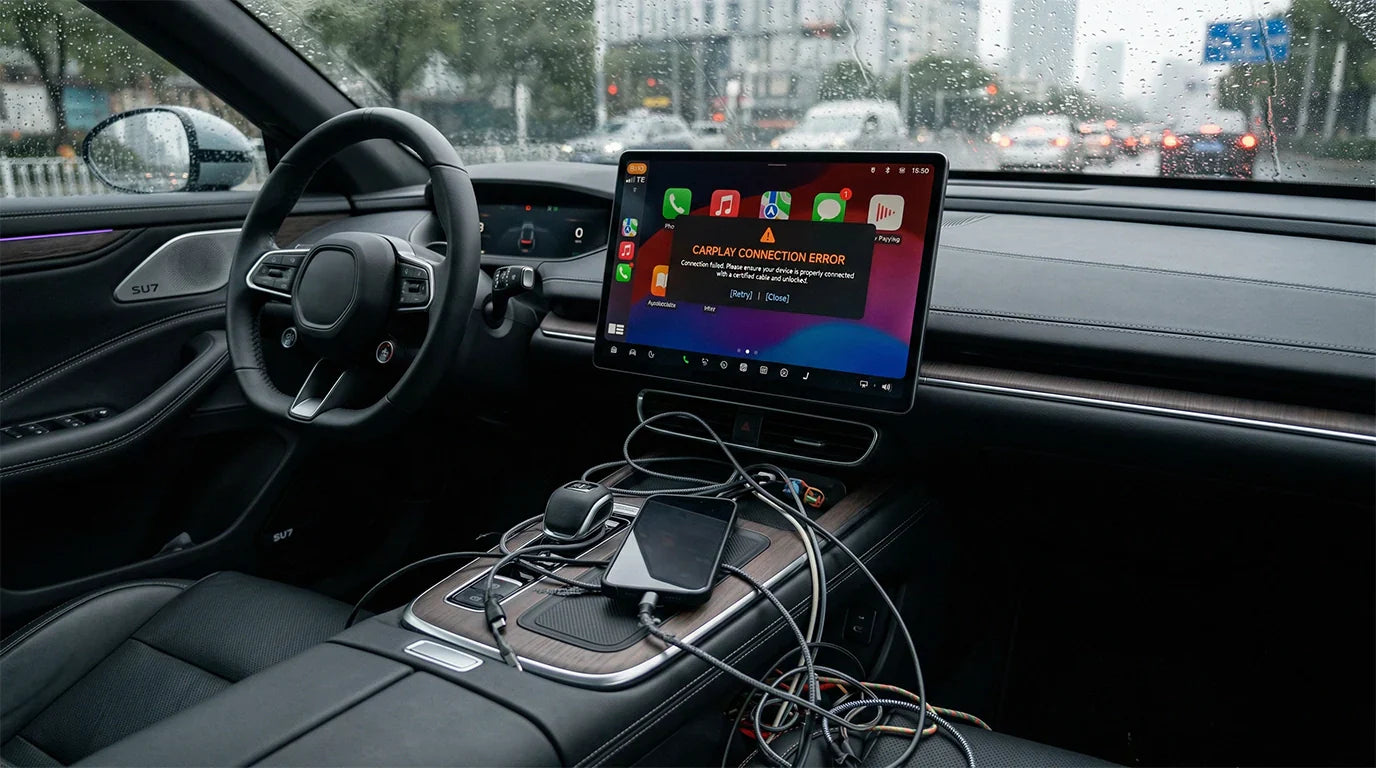
- Try a short, good-quality data cable. A cable can charge the phone while still failing to carry data reliably.
- Inspect the phone connector and USB port for looseness, debris, or damage without inserting metal tools.
- Restart the phone and infotainment system, then reconnect while parked.
- If possible, test one other compatible phone or cable to isolate whether the fault follows the phone, cable, port, or vehicle.
If Your Hyundai Has Native Wireless Android Auto
Google's wireless Android Auto setup guidance says Bluetooth, Wi-Fi, and Location Services should be on during first-time setup. Pair from the vehicle's phone-projection or device-connection menu and accept the prompts on both screens.
If the saved wireless connection fails, remove the vehicle from Android Auto's saved cars and remove the phone from the Hyundai's device list, then pair again. Do not assume that every Hyundai with wired Android Auto also has native wireless Android Auto.

Original Hyundai Android Auto Setup Video
The original article included the following third-party setup video for Hyundai i10, i20, and i30 examples. Use it as a visual reference only; the menu path may not match a U.S.-market vehicle or a different Hyundai infotainment generation.
What If the Problem Is Inside the MyHyundai App?
The query “MyHyundai app Bluetooth pairing issues” can describe a different task from pairing the phone for calls or launching Android Auto. First identify the exact feature named on the app screen. It may be an account, Bluelink, Digital Key, phone-as-key, or another connected-service flow rather than Android Auto.
- Confirm you are signed in to the intended MyHyundai account and that the correct vehicle is shown.
- Read the feature's eligibility and setup screen before deleting the vehicle's normal Bluetooth profile.
- Allow only the phone permissions required by that feature, such as Bluetooth or location, when prompted.
- Check the exact vehicle, trim, market, phone model, operating-system version, and connected-services status.
- If the feature shows an account, enrollment, subscription, or server message, use Hyundai support for that feature rather than repeating Android Auto cable steps.
A useful diagnostic clue is whether normal Bluetooth calls and Android Auto still work. If they do, the fault is less likely to be the vehicle's basic Bluetooth radio and more likely to belong to the specific MyHyundai feature or account path. This is a diagnostic inference, not a universal repair conclusion.
Check Hyundai Software Before Using a Factory Reset
Hyundai provides separate Navigation and Display Audio update paths. Use the official Hyundai USA update portal and identify the vehicle by VIN or the requested vehicle information. Do not install an update package meant for another model, market, or infotainment system.
Also check for Android system and Google Play system updates on the phone. Google's Android Auto connection troubleshooting recommends checking vehicle compatibility, trying a different cable for wired use, confirming Android Auto is enabled in the car, restarting the infotainment system, and forgetting previously connected cars.
Use a factory reset only when the exact Hyundai manual or Hyundai support recommends it. A reset can remove radio presets, paired phones, saved preferences, and other data without fixing a hardware, account, or compatibility problem.
How to Isolate the Fault Before Visiting a Dealer
| Test result | What it suggests | Next step |
|---|---|---|
| Another data cable works | The first cable is the likely fault. | Replace it with a reliable data cable. |
| Another compatible phone works | The issue may follow the original phone, settings, connector, or software. | Review that phone's updates, saved cars, permissions, and port. |
| No compatible phone works in the data port | The vehicle port, infotainment setting, or vehicle software may need attention. | Check the manual and contact Hyundai support or a dealer. |
| Bluetooth calls work, but Android Auto does not | Basic Bluetooth is connected; the projection path still has a separate issue. | Check wired/wireless eligibility, data cable/port, Android Auto enablement, and saved cars. |
| Android Auto works, but a MyHyundai feature does not | The app feature or account path may be separate from Android Auto. | Use the feature-specific MyHyundai or Hyundai support flow. |
Bring the phone and the cable you tested if you visit a dealer. Record the exact error message, when the failure started, and which functions still work; those details are more useful than reporting only that “Bluetooth is broken.”
Can a Wireless Android Auto Adapter Help?
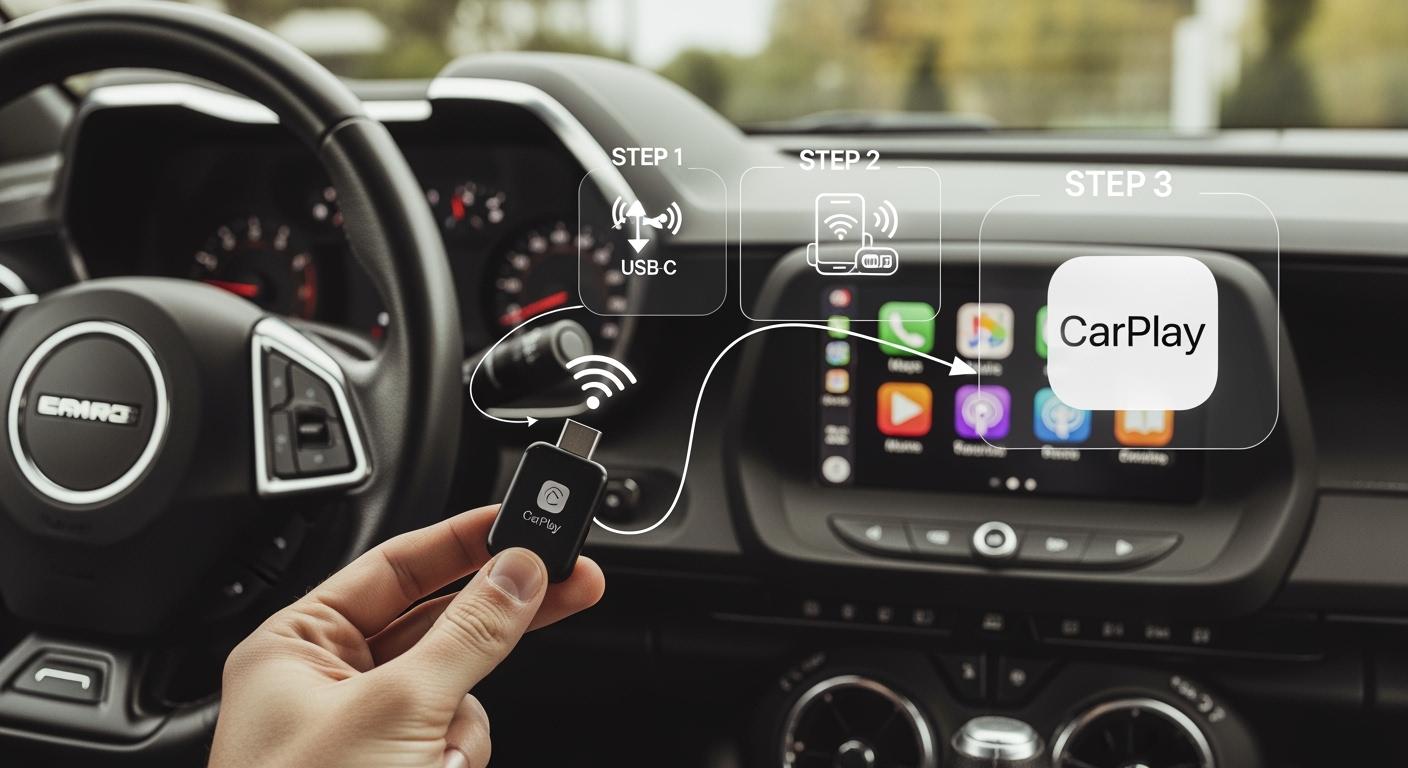
A wired-to-wireless adapter is relevant only in a narrow case: the Hyundai already has factory wired Android Auto, wired Android Auto opens reliably through the data port, and the goal is to remove the routine cable connection. It is not a repair for failed Hyundai Bluetooth, a damaged USB port, unstable factory wired Android Auto, unsupported native wireless Android Auto, infotainment software faults, or MyHyundai app pairing issues.
After the factory wired connection passes that test, you may evaluate CARLUEX LINK. Check the current CARLUEX compatible-vehicles page and use the CARLUEX help page if the exact Hyundai, head unit, USB behavior, or intended use is unclear. A model-year list does not override the factory-wired Android Auto requirement.

Frequently Asked Questions
Why is my Hyundai Bluetooth connected but Android Auto is not working?
Bluetooth calls and Android Auto phone projection are not the same function. Check whether the Hyundai uses wired or native wireless Android Auto, then verify the data port and cable for wired use or Bluetooth, Wi-Fi, Location Services, and the saved-car profile for wireless use.
Do I need to download the Android Auto app?
On currently compatible Android phones, Android Auto is integrated into the phone. Update Android and Google Play system components instead of downloading an unofficial app.
Why does MyHyundai pairing fail when regular Bluetooth still works?
The MyHyundai feature may use a separate account, connected-service, permission, vehicle-eligibility, or phone-compatibility path. Identify the exact feature and follow its own instructions rather than deleting a working Android Auto connection automatically.
Should I reset the Hyundai infotainment system?
Use a full reset only when the exact vehicle manual or Hyundai support recommends it. First try the lower-impact steps: restart, verify the connection path, test a known-good cable or phone, remove the relevant saved profile, and check applicable software updates.
Will a wireless Android Auto adapter fix Hyundai Bluetooth?
No. An adapter should be considered only when factory wired Android Auto already works reliably and the goal is a wireless conversion. It does not repair the vehicle's Bluetooth radio, USB data port, software, MyHyundai account, Bluelink, or Digital Key.
Bottom Line
For a Hyundai Bluetooth connection problem, pair or re-pair the phone through the vehicle's Bluetooth menu. For Android Auto, confirm wired versus native wireless support and troubleshoot that specific path. For a MyHyundai app pairing issue, identify the exact connected feature before changing the car's working Bluetooth or Android Auto settings.
Only after factory wired Android Auto works reliably should a wired-to-wireless adapter enter the decision. This sequence protects the existing system, makes the fault easier to isolate, and prevents buying hardware for a problem it cannot fix.


Napsat komentář
Všechny komentáře jsou před zveřejněním moderovány.
Tento web je chráněn službou hCaptcha a vztahují se na něj Zásady ochrany osobních údajů a Podmínky služby společnosti hCaptcha.