

How to Enable Siri for CarPlay: Step-by-Step Guide
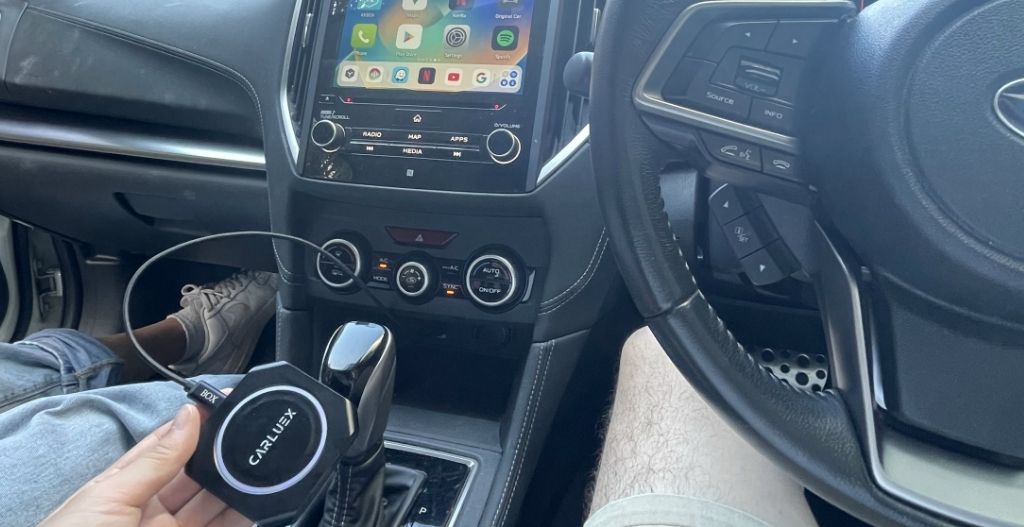
Siri voice control is one of the most powerful features of Apple CarPlay, letting you keep your hands on the wheel and eyes on the road. This guide covers everything you need to know about enabling and using Siri with CarPlay, whether you're using a wired connection or a wireless adapter like the CARLUEX AIR.
What is Siri and Why Use It with CarPlay?
Siri is Apple's voice assistant, and when integrated with CarPlay, it becomes your copilot. Instead of fumbling with your phone, you can dictate messages, make calls, select music, and get navigation directions using just your voice. Studies show hands-free voice commands significantly reduce distracted driving incidents.
With CARLUEX wireless adapters, you get all the Siri functionality of CarPlay without the hassle of connecting a cable every time you drive.
How to Enable Siri for CarPlay
Step 1: Connect Your iPhone to CarPlay
Before using Siri, ensure CarPlay is set up on your system:
- Connect your iPhone to your car's USB port using a Lightning cable, or pair wirelessly if your vehicle supports it
- On your iPhone, go to Settings > CarPlay
- Select your vehicle from the list
- Follow the on-screen prompts to complete setup
Step 2: Enable Siri on Your iPhone
Siri must be enabled before it works with CarPlay:
- Open Settings > Siri & Search
- Toggle on Listen for "Hey Siri"
- Toggle on Press Side Button for Siri (optional, for button activation)
- Practice saying "Hey Siri" to ensure your iPhone recognizes your voice
Step 3: Activate Siri While Driving
Once set up, activate Siri in multiple ways:
- Hands-free: Say "Hey Siri" when CarPlay is active
- Steering wheel: Press and hold the voice command button
- Touch: Tap and hold the CarPlay home button on your display
What Can Siri Do with CarPlay?
Siri integration with CarPlay is extensive. Here are the main capabilities:
- Navigation: "Hey Siri, navigate to the nearest gas station" — Siri launches Apple Maps or Waze
- Calls: "Hey Siri, call Mom" — Initiates hands-free calling
- Messages: "Hey Siri, send a message to John" — Dictate and send texts without touching your phone
- Music: "Hey Siri, play my driving playlist" — Controls Apple Music, Spotify, and other audio apps
- Apps: Siri works with most CarPlay-compatible third-party apps including WhatsApp, Podcasts, and more
How to Troubleshoot Siri Not Working with CarPlay
If Siri isn't responding in CarPlay, try these fixes:
- Check Siri is enabled: Settings > Siri & Search should show all options toggled on
- Verify microphone access: Some apps require microphone permissions in Settings > Privacy
- Restart your iPhone: A simple restart resolves most temporary glitches
- Check your car's microphone: If using steering wheel controls, ensure the microphone is working
- Update iOS: Ensure you're running the latest iOS version for best Siri performance
Using Siri with Wireless CarPlay Adapters
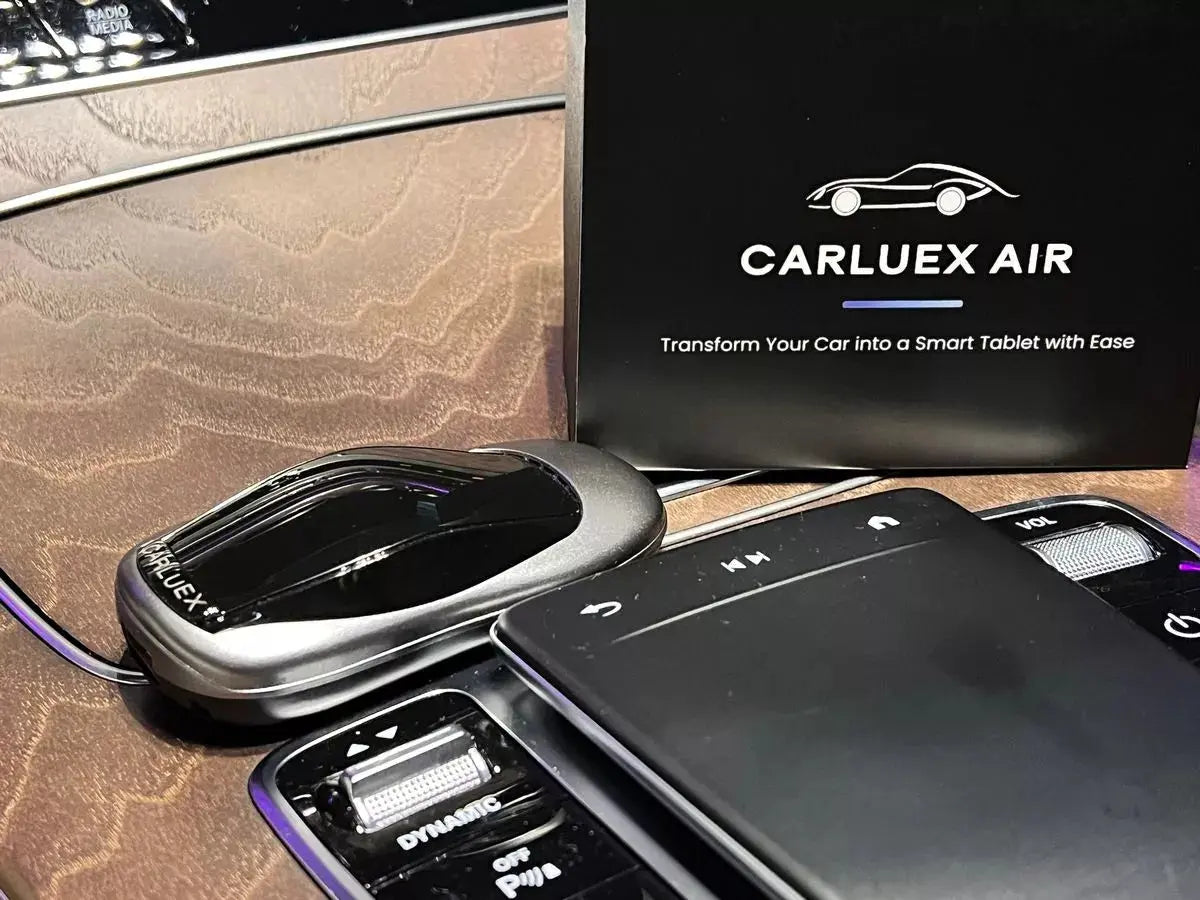
Wireless CarPlay adapters like CARLUEX PRO+ and CARLUEX AIR maintain full Siri functionality. Since these adapters present themselves as standard CarPlay connections to your iPhone, Siri works identically whether you use a cable or wireless connection.
The CARLUEX AIR particularly excels for Siri users because it:
- Provides stable 5GHz WiFi for instant voice command recognition
- Supports automatic reconnection so Siri is ready within seconds of starting your car
- Works with all CarPlay apps that support Siri voice commands
Advanced Siri Tips for CarPlay
- Customize voice feedback: Settings > Siri & Search > Voice Feedback lets you choose when Siri speaks aloud
- Use short commands: "Hey Siri, directions home" works faster than longer phrases
- Teach Siri your contacts: Siri learns your frequently called contacts for faster dialing
- Announce messages: Enable "Announce Messages with Siri" in Settings > Notifications for incoming text readouts
Frequently Asked Questions
How do I activate Siri with CarPlay?
Say "Hey Siri" or press and hold the voice command button on your steering wheel. Make sure "Listen for Hey Siri" is enabled in Settings > Siri & Search on your iPhone.
Does Siri work with wireless CarPlay?
Yes, Siri works with both wired and wireless CarPlay connections. Devices like CARLUEX AIR enable wireless CarPlay while maintaining full Siri functionality.
Why is Siri not responding in CarPlay?
Check that Siri is enabled in Settings > Siri & Search, your iPhone is connected to CarPlay, and your car's microphone is working properly. Restart your iPhone if issues persist.
What can Siri do with CarPlay?
Siri can make calls, send and read text messages, play music, provide turn-by-turn directions, and control CarPlay-compatible apps—all hands-free while driving.
Can I use Siri without pressing any buttons?
Yes, enable "Listen for Hey Siri" in Settings > Siri & Search. Once enabled, you can activate Siri completely hands-free by saying "Hey Siri" whenever CarPlay is active.
Does CARLUEX support Siri voice commands?
Yes, all CARLUEX wireless CarPlay adapters support full Siri voice control through the standard CarPlay interface. Simply activate Siri using "Hey Siri" or your steering wheel button.


Leave a comment
This site is protected by hCaptcha and the hCaptcha Privacy Policy and Terms of Service apply.