

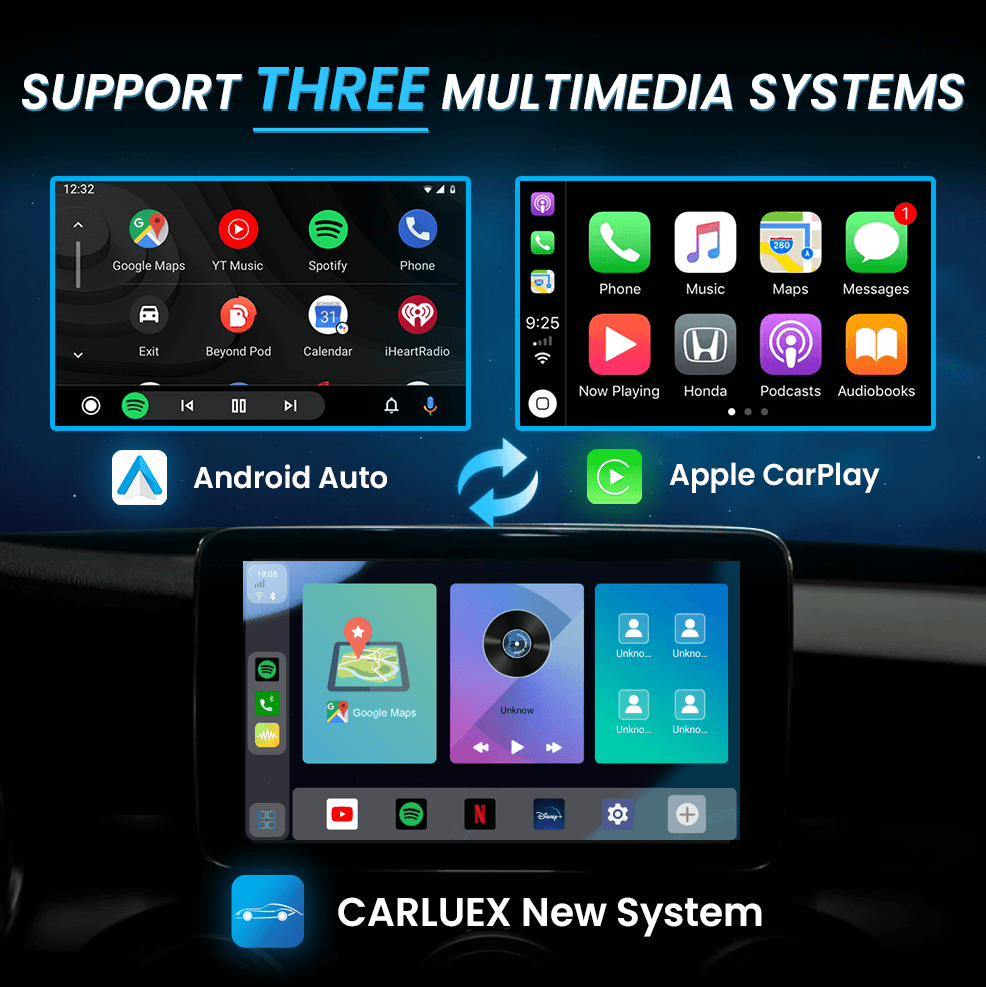
CARLUEX PRO+ brings Apple CarPlay and Android Auto to virtually any car, allowing you to enjoy the convenience of smartphone integration on your vehicle's display. This guide explains what CarPlay and Android Auto are, and how to use them with your CARLUEX PRO+ device.
What is Apple CarPlay?
Apple CarPlay is a smarter, safer way to use your iPhone while driving. It takes the things you want to do with your iPhone while driving and puts them on your car's built-in display. With CarPlay, you can:
- Get turn-by-turn navigation with Apple Maps or third-party apps like Google Maps and Waze
- Make and receive phone calls hands-free
- Send and receive messages using voice control (Siri)
- Listen to your favorite music, podcasts, and audiobooks
- Use compatible third-party apps for additional functionality
What is Android Auto?
Android Auto is Google's solution for using your Android phone while driving. It delivers an optimized interface to your car's screen, allowing you to access navigation, communication, and entertainment apps safely. Android Auto features:
- Google Maps and Waze navigation with real-time traffic updates
- Hands-free voice commands through Google Assistant
- Call and message functionality with auto-readout
- Support for popular music and podcast apps
- Automatic app adaptation for driving-friendly layouts
What is ZLINK5?
ZLINK5 is the proprietary app that runs on CARLUEX PRO+ devices. This app enables the connection between your smartphone and the CARLUEX hardware, supporting both Apple CarPlay and Android Auto protocols. ZLINK5 handles the protocol translation and ensures smooth communication between your phone and your car's display system.
How to Connect Your Phone
- Start your vehicle and ensure CARLUEX PRO+ is powered on
- Locate ZLINK5 on your CARLUEX PRO+ home screen and tap to open it
-
Connect your phone to the CARLUEX PRO+ USB port using a certified cable:
- For Apple CarPlay: Use a Lightning cable (iPhone 5 or later)
- For Android Auto: Use a USB-C or Micro-USB cable (Android 5.0 Lollipop or later)
- Approve permissions on your phone when prompted (this is required for first-time setup)
- CarPlay/Android Auto interface will appear on your car's display within seconds
Wireless Connection (Optional)
If your CARLUEX PRO+ supports wireless connectivity:
- Ensure your phone's WiFi and Bluetooth are enabled
- Open ZLINK5 on CARLUEX PRO+
- Select "Wireless" mode
- Choose your phone from the available devices list
- Follow the on-screen pairing instructions
Tips for Best Experience
- Use OEM cables: Official or high-quality cables ensure stable connection
- Keep your phone charged: Connect to a USB charger while using CarPlay/Android Auto
- Update your apps: Ensure Google Maps, Apple Maps, Spotify, and other apps are up to date
- Voice commands: Use Siri or Google Assistant for safer, hands-free control
Troubleshooting
CarPlay/Android Auto not appearing
- Check that the USB cable is securely connected
- Try a different USB port on CARLUEX PRO+
- Restart your phone and CARLUEX PRO+ device
- Ensure your phone is running the latest OS version
Connection drops frequently
- Use a higher-quality USB cable
- Check for damage on the cable or USB port
- Clear your phone's cache if issues persist
Frequently Asked Questions
Which iPhone models support CarPlay with CARLUEX PRO+?
iPhone 5 and later models with iOS 7.1 or higher are supported.
Which Android phones work with Android Auto?
Android phones with Android 5.0 (Lollipop) or higher are compatible. Google Pixel, Samsung Galaxy, and OnePlus devices are fully supported.
Can I use wireless CarPlay with CARLUEX PRO+?
Yes, if your CARLUEX PRO+ model supports wireless connectivity. Check your device specifications for details.
Do I need a SIM card for CarPlay/Android Auto?
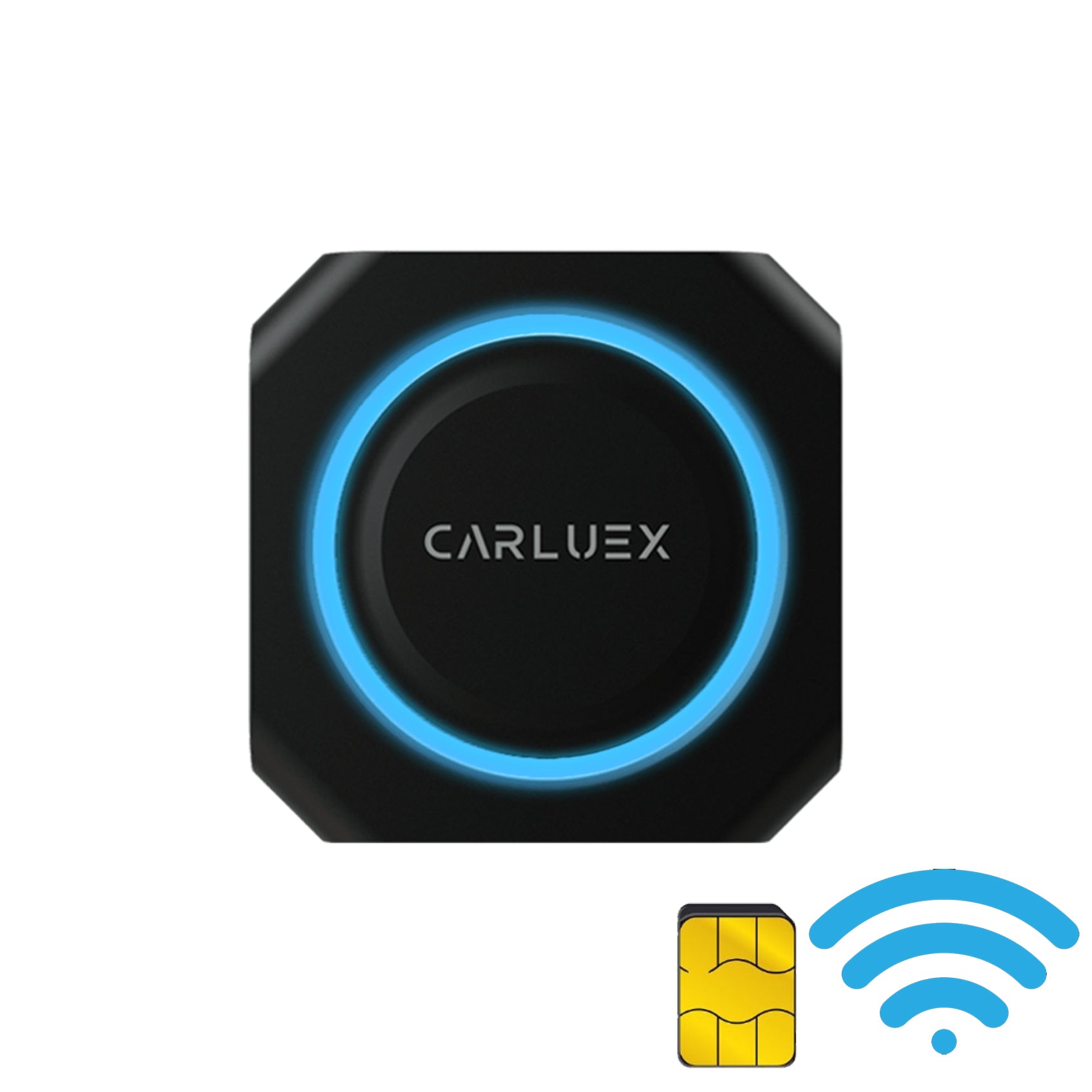
No, CarPlay and Android Auto use your phone's data connection for navigation and streaming. A SIM card is only needed if you want to use CARLUEX PRO+ independently for internet access.


اترك تعليقًا
تخضع جميع التعليقات للإشراف قبل نشرها.
This site is protected by hCaptcha and the hCaptcha Privacy Policy and Terms of Service apply.