

Wired vs. Wireless CarPlay Audio Quality: Lossless, Latency & Settings
If you are comparing wired vs. wireless CarPlay audio quality, the safest answer is not that one mode always sounds better. Wired CarPlay is the clearer reference when your goal is to verify Apple Music lossless playback, while wireless CarPlay is often more convenient. The final listening result still depends on the vehicle, head unit, audio system, phone settings, cable, adapter, and firmware in the specific setup.
Apple's documentation gives us a useful boundary: CarPlay can connect through a vehicle USB port or through its wireless capability, Apple says Bluetooth connections are not lossless, and Apple says lossless audio can be heard with CarPlay through a USB connection. That is enough to build a careful test. It is not enough to publish a universal latency number or promise that every wired connection will sound better to every driver.
The short answer: wired is the safer lossless reference, not a universal sound-quality winner
Use a direct USB CarPlay connection as your reference if you are checking whether Apple Music lossless is reaching the car. Use wireless CarPlay when convenience matters and verify the result with the same song, app, volume, equalizer preset, and vehicle input. If the two modes sound different, isolate one variable at a time instead of assuming the connection type is the only cause.
What Apple confirms
Apple's lossless audio guidance says that Bluetooth connections are not lossless and that CarPlay can play lossless audio through USB. Apple's CarPlay connection guide separately documents USB and wireless setup. These are the source-backed parts of the comparison.
What depends on the vehicle, head unit, and setup
Apple does not publish one sound-quality ranking or one latency measurement that applies to every car. The vehicle stereo, digital-to-analogue conversion, audio processing, phone software, wireless implementation, adapter firmware, cable, and network conditions can all affect what you hear. Treat any exact claim about “zero delay,” “studio quality,” or a guaranteed improvement as a product- or test-specific claim that needs its own evidence.
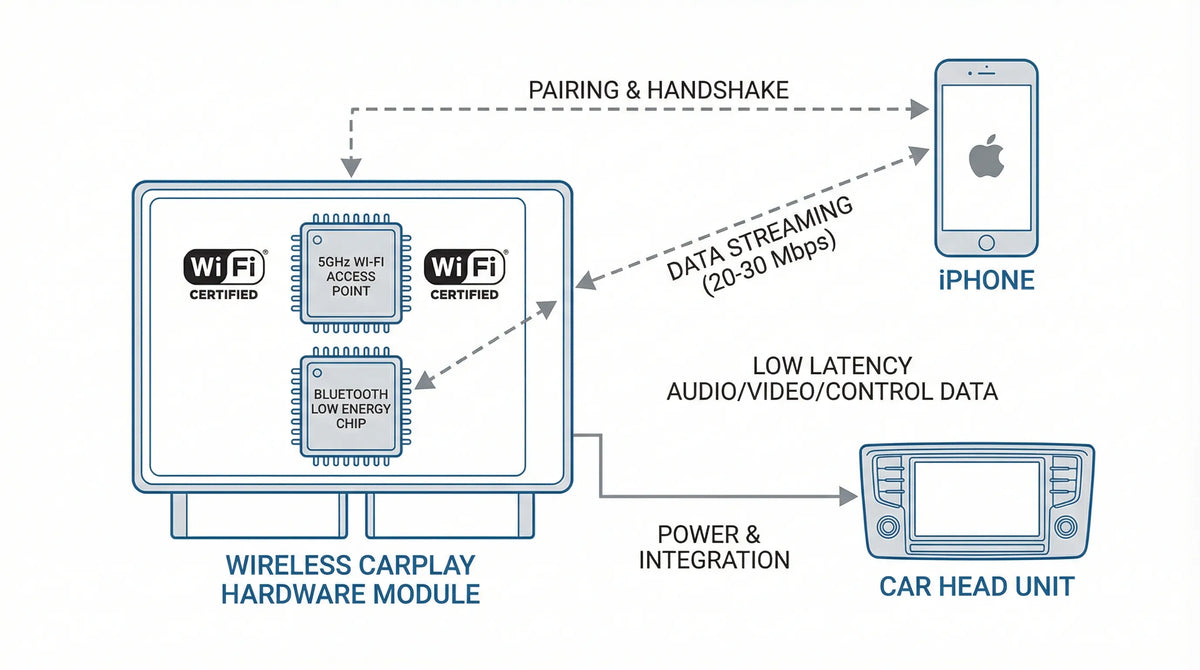
Wired vs. wireless CarPlay: what changes in the connection path
Changing from wired to wireless changes how the iPhone and vehicle establish the CarPlay session. It does not automatically change the car's speakers or make a particular equalizer preset correct. Start by confirming which connection path the vehicle actually supports, then compare both modes only if the vehicle supports both.
Wired CarPlay uses the vehicle USB path
For wired CarPlay, Apple directs users to connect the iPhone to the vehicle's USB port. A port marked with a CarPlay or smartphone icon is the relevant starting point. If audio is unstable, check the cable, try another compatible port if the car has one, and make sure the vehicle stereo and iPhone are updated before judging sound quality.
Wireless CarPlay uses Bluetooth and Wi-Fi for setup and connection
For wireless CarPlay, Apple says to make sure Bluetooth and Wi-Fi are on, select the CarPlay network, and check that Auto-Join is enabled. Bluetooth being required for setup does not by itself prove that the entire CarPlay audio stream is ordinary Bluetooth playback. The important practical point is to verify the actual CarPlay session rather than pair the iPhone as a separate Bluetooth audio source.
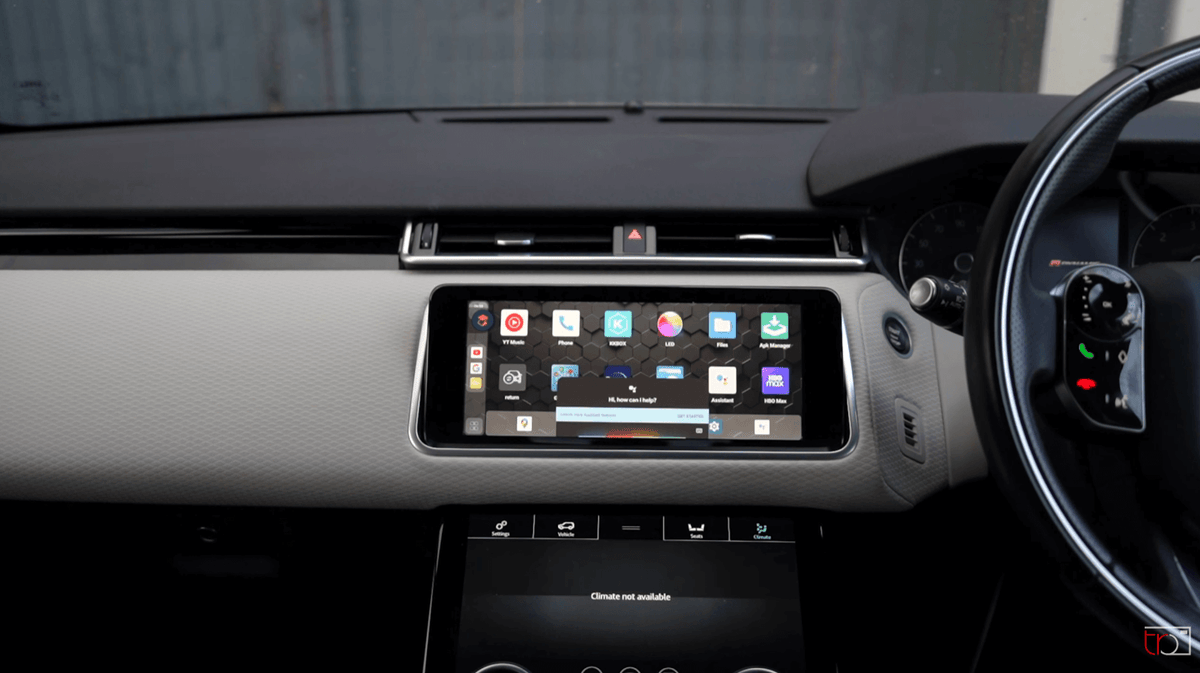
That distinction matters when someone says wireless CarPlay sounds worse. A separate Bluetooth source, a vehicle's own media mode, and a wireless CarPlay session are not necessarily the same signal path. Confirm the CarPlay logo and the selected source on the vehicle display before comparing.

Lossless Apple Music and CarPlay: the boundary that matters
“Lossless” describes how the music is encoded and delivered; it is not the same as a guarantee that every car will sound better. Apple Music can offer lossless tracks, but the final result also depends on the connection and the car's audio chain. Use Apple's documented settings as a starting point, then keep the comparison controlled.
Turn on and verify Lossless Audio on iPhone
On a current iPhone or iPad, Apple lists the path as Settings, Apps, Music, Audio Quality, then Lossless Audio. If a track was downloaded before the setting changed, Apple says you may need to delete it and download it again to obtain the lossless version. Streaming lossless audio also uses more data than lower-quality playback.
Why Apple says Bluetooth connections are not lossless
Apple's lossless article explicitly says Bluetooth connections are not lossless. For this article's comparison, that means a direct USB CarPlay session is the documented reference when lossless playback is the question. It does not mean that every wireless CarPlay implementation has the same audio behavior as a basic Bluetooth speaker connection; do not collapse those two technologies into one unsupported conclusion.
What USB lossless support does and does not prove
USB lossless support proves that Apple documents a wired CarPlay route for lossless playback. It does not prove that your vehicle's amplifier, speakers, EQ, or digital processing will make the difference obvious. It also does not provide a universal wired-versus-wireless latency figure. Keep those claims separate in a review or buying decision.

Latency, dropouts, and low-quality sound: test the right variable
Audio delay and low audio quality are different symptoms. Delay is a timing problem: for example, a tap or voice command may appear to reach playback later than expected. Low quality is a fidelity problem: the sound may seem less detailed, quieter, distorted, or differently equalized. One symptom does not prove the other.
Do not confuse latency with compression
A universal latency number is not available in the official sources used here. Perceived delay can be affected by the phone, vehicle software, audio processing, wireless implementation, adapter, or the app itself. Record the exact setup and symptom instead of promising that a particular connection will remove all delay.
A repeatable wired-versus-wireless A/B check
- Use the same iPhone, Apple Music track, playback position, vehicle, volume, EQ, and listening position.
- Test direct USB CarPlay first, and note whether the CarPlay screen and audio start normally.
- Test wireless CarPlay without changing the song or vehicle audio preset.
- Repeat the comparison after the car has been restarted; one successful or failed connection is not a lab result.
- Write down whether the symptom is delay, dropouts, distortion, volume mismatch, or a source-selection error.
If the problem appears only in wireless mode, check Bluetooth, Wi-Fi, the CarPlay network Auto-Join setting, and the vehicle's latest firmware. If it appears in both modes, inspect the vehicle audio settings, the source app, the iPhone, and the car's stereo before changing hardware.

CarPlay sound settings worth checking before changing hardware
Settings are an easy source of false comparisons. Before deciding that wired or wireless CarPlay has worse sound, make both tests use the same source app, track, volume, audio preset, and phone settings. Also check that the vehicle has not switched from CarPlay to a separate Bluetooth or USB media source.
Apple Music audio-quality settings
Use the Apple Music Audio Quality screen to confirm whether Lossless Audio is enabled, and remember that higher-quality streaming consumes more data. If your purpose is a lossless check, do it over the documented USB CarPlay path first and keep the result labeled as a connection-and-system test, not a universal vehicle rating.
CarPlay display and album-art settings
Apple's CarPlay settings guide includes options such as Show Album Art and Driving Focus. These options can change what appears on the display and how notifications are handled, but they are not an audio-quality certification. Keep display behavior and audio fidelity as separate QA checks.
Vehicle audio settings and safe-driving limits
Use the vehicle's built-in controls while parked or have a passenger handle the comparison. Avoid changing several audio settings at once. If the stereo has separate presets for different sources, record the preset name and return both connection modes to the same baseline before drawing a conclusion.

When a wireless adapter belongs in the decision
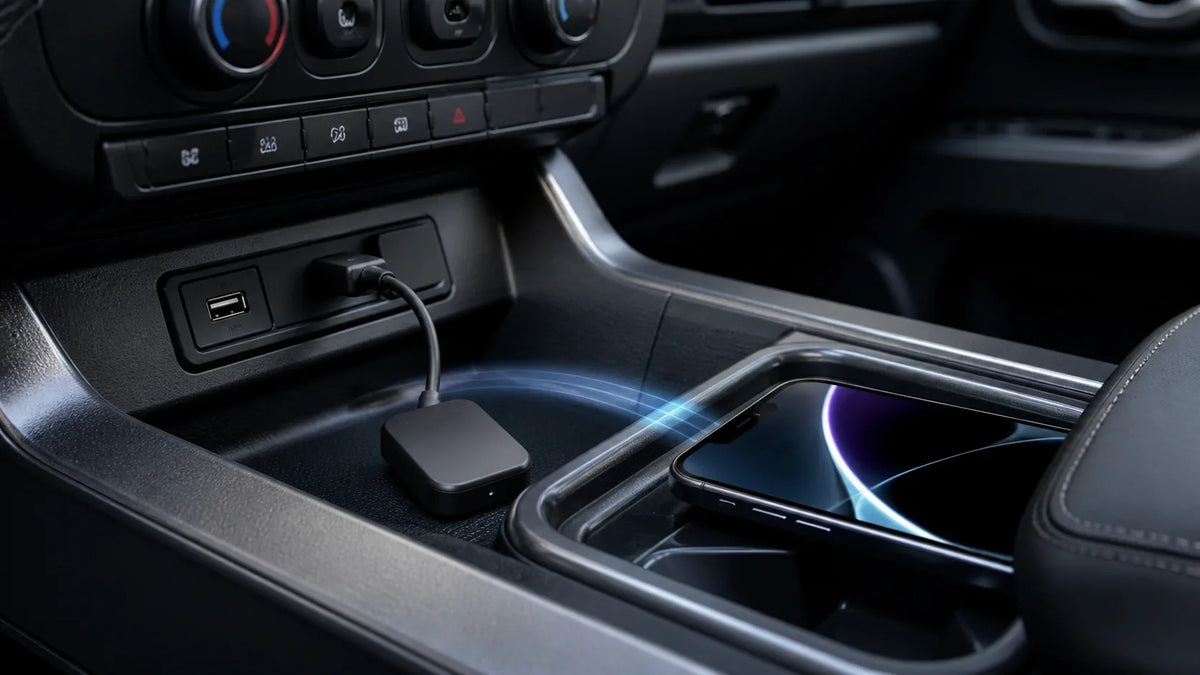
A wireless adapter should enter the discussion only after you confirm that the vehicle has the required factory CarPlay path. Start with the CARLUEX compatibility page and, when the vehicle configuration is unclear, the CARLUEX Help Center. These resources are starting points for verification, not proof that a specific trim or head unit is supported.
Confirm factory wired-CarPlay eligibility first
Do not assume that a vehicle with a USB port supports wired CarPlay. Confirm the CarPlay logo, the owner's manual, the vehicle display behavior, and the exact model-year configuration. If the vehicle already supports wireless CarPlay natively, an adapter designed to add wireless capability may not be the right solution.
Treat adapter compatibility as a vehicle-specific question
The CARLUEX wireless CarPlay adapter collection and CARLUEX LINK product page can be used as conditional references while you verify the vehicle. These links are not a recommendation; only evaluate a product after the vehicle and product requirements are checked. This article does not claim that any specific product improves audio quality, removes latency, or works with an unverified car.
What to document before contacting support
Record the iPhone model and iOS version, vehicle make/model/year and trim, whether factory CarPlay is wired or wireless, cable and USB port used, source app, exact symptom, and whether the issue occurs in both modes. A clear test record is more useful than a general statement that wireless audio “sounds bad.”
For related troubleshooting, see the CarPlay settings guide, the Apple CarPlay reset guide, and the iPhone CarPlay troubleshooting guide.
FAQ
Is wired CarPlay better for sound quality?
Wired CarPlay is the safer reference when the question is Apple Music lossless playback because Apple documents lossless CarPlay through USB. That does not prove that every vehicle will sound better wired, because the vehicle's audio hardware and processing still affect the result.
Does wireless CarPlay support Apple Music lossless audio?
Apple's public guidance used for this article explicitly states that Bluetooth connections are not lossless and that lossless CarPlay is available through USB. It does not provide a universal lossless guarantee for every wireless CarPlay implementation, so a wireless setup should not be labeled lossless without specific, current, system-level evidence.
Why does CarPlay audio sound delayed or low quality?
First separate delay, dropouts, distortion, volume mismatch, and source-selection errors. Then compare the same track and settings in wired and wireless modes, check the iPhone, Bluetooth, Wi-Fi, CarPlay network Auto-Join, cable, USB port, vehicle firmware, and audio preset. There is no universal official latency value to apply to every car.
Should I buy a wireless CarPlay adapter for better audio?
Do not buy one solely on an unverified promise of better audio. Confirm factory wired-CarPlay eligibility and the exact vehicle configuration first. If you use a product page or collection for research, treat it as a conditional compatibility reference until the vehicle and product are verified together.
Official sources
- Apple Support: About lossless audio in Apple Music
- Apple Support: Connect iPhone to CarPlay
- Apple Support: Change settings in CarPlay


اترك تعليقًا
This site is protected by hCaptcha and the hCaptcha Privacy Policy and Terms of Service apply.